Choosing an image format comes down to three questions: what kind of image it is (a photo, or a graphic with text and sharp edges), whether it needs see-through areas, and where it will be used. This guide explains how JPG, PNG and WebP differ on each point, and why the size you save an image at often matters as much as the format.
It isn’t an editing tutorial. Once you know which format you want, the Biberks Image Converter can convert it in your browser.
Three formats in one minute
- JPG (or JPEG) is the long-standing format for photos. The JPEG standard dates from 1992, and the files you meet are lossy: they make photos small by discarding detail you are unlikely to notice. The standard also defines a lossless mode, but it is rarely used. JPG has no transparency.
- PNG is lossless, so it keeps every pixel exactly. The W3C PNG specification (third edition, 2025) covers still and animated images with an optional alpha channel for transparency.
- WebP, created by Google, can be either lossy or lossless, and it supports transparency and animation. Google maintains the WebP documentation and reference library, and the format is described in RFC 9649, an Informational RFC published through the IETF.
| Feature | JPG | PNG | WebP |
|---|---|---|---|
| Compression | Lossy (everyday JPG files) | Lossless | Lossy or lossless |
| Transparency | No transparency | Yes, full alpha | Yes, full alpha |
| Animation | No | Yes (animated PNG) | Yes |
| Best for | Photos that must work everywhere | Screenshots, text, sharp graphics, master copies | Most web images, photos and graphics |
| Avoid for | Text, sharp edges, transparency | Photos on web pages (large files) | Places that only accept JPG or PNG |
| Browsers that show it | All | All | All current major browsers; not Internet Explorer or Safari before 14 |
| Created inside a web page | All major browsers | All major browsers | Chrome, Edge and Firefox; not Safari |
Sources: MDN, Image file type and format guide; caniuse: WebP; MDN, HTMLCanvasElement.toBlob(). Checked on 8 October 2026.
Lossy vs lossless compression
Lossy compression throws away detail to make a much smaller file, aiming for the detail people are least likely to see. Lossless compression shrinks the file without changing a single pixel. MDN’s advice on choosing an image format puts it simply: photographs can usually tolerate lossy compression, while screenshots, diagrams, logos and line art are better lossless, because blurring and coloured fringes around text and sharp edges are easy to see.
Lossless doesn’t mean better-looking
A lossless PNG isn’t automatically the “quality” option. For a photo, it can be several times the size of a JPG or WebP that looks the same. And lossless only protects what you start with. Saving a JPG as a PNG keeps the JPG’s losses exactly as they are; it doesn’t restore anything.
What the quality setting does
Lossy formats have a quality setting. Lower values give smaller files and more visible artefacts, such as blockiness, smudged edges and banding in smooth skies. The number isn’t a universal scale: 80 in one app isn’t guaranteed to look like 80 in another, or in another format. Judge the result by eye, at the size the image will actually be shown.
Transparency
Transparency, or an alpha channel, lets parts of an image be fully or partly see-through, as a logo on a coloured background needs. PNG and WebP both support it. JPG doesn’t, so when an image with transparent areas is saved as a JPG, those areas have to become a solid colour.
The Image Converter fills them with white by default, and you can choose black or any other colour instead. If the image needs to stay see-through, choose PNG or WebP.
Photos vs graphics, screenshots and logos
Photos are full of gradual changes in colour and fine texture, which lossy compression handles well. Graphics are different: screenshots, charts, interface elements and logos have flat colours, small text and hard edges. Lossy compression smears those edges and leaves faint blotches around letters, so PNG or lossless WebP is the safer choice.
That isn’t a strict rule: a JPG can suit a busy illustration, and a PNG a photo you’ll keep editing. Look at what the image contains.
When SVG beats all three
Logos, icons and diagrams are often better as SVG, a vector format that describes shapes rather than pixels, so it stays sharp at any size. MDN recommends SVG for diagrams and icons that must look accurate at different sizes. The decision chart further down this page is an SVG for exactly that reason.
File size, dimensions and page speed
A file’s size depends on four things: the format, the pixel dimensions, the image itself and the encoder and settings used to save it. Changing only the format is often not the biggest win. A smaller file isn’t automatically better either: if the savings come from visible damage, it has gone too far.
One illustrative test
To show how much the image and the encoder matter, we converted Biberks’ own sample artwork: a 640 × 420 pixel PNG with large transparent areas, 13,393 bytes. We used the Image Converter’s default settings (original size, quality 90% for JPG and WebP) in Chromium 152 on Windows on 8 October 2026, and three runs gave identical results.
| Saved as | File size | Compared with the original | Transparent areas |
|---|---|---|---|
| Original PNG | 13,393 bytes | — | Kept |
| JPG, quality 90% | 25,546 bytes | 91% larger | Filled with white |
| PNG, saved again by the browser | 26,430 bytes | 97% larger | Kept |
| WebP, quality 90% | 12,176 bytes | 9% smaller | Kept |
The JPG is nearly twice the size of the original and has lost its transparency: flat, sharp-edged artwork is not what JPG is designed for. The second PNG is bigger too, although it is the same image in the same lossless format; the browser’s PNG encoder simply compressed it less tightly than the tool that made the original. The WebP is the smallest and keeps the transparency. A different image, encoder or setting would give different numbers, so treat this as one example, not a rule.
Dimensions matter too
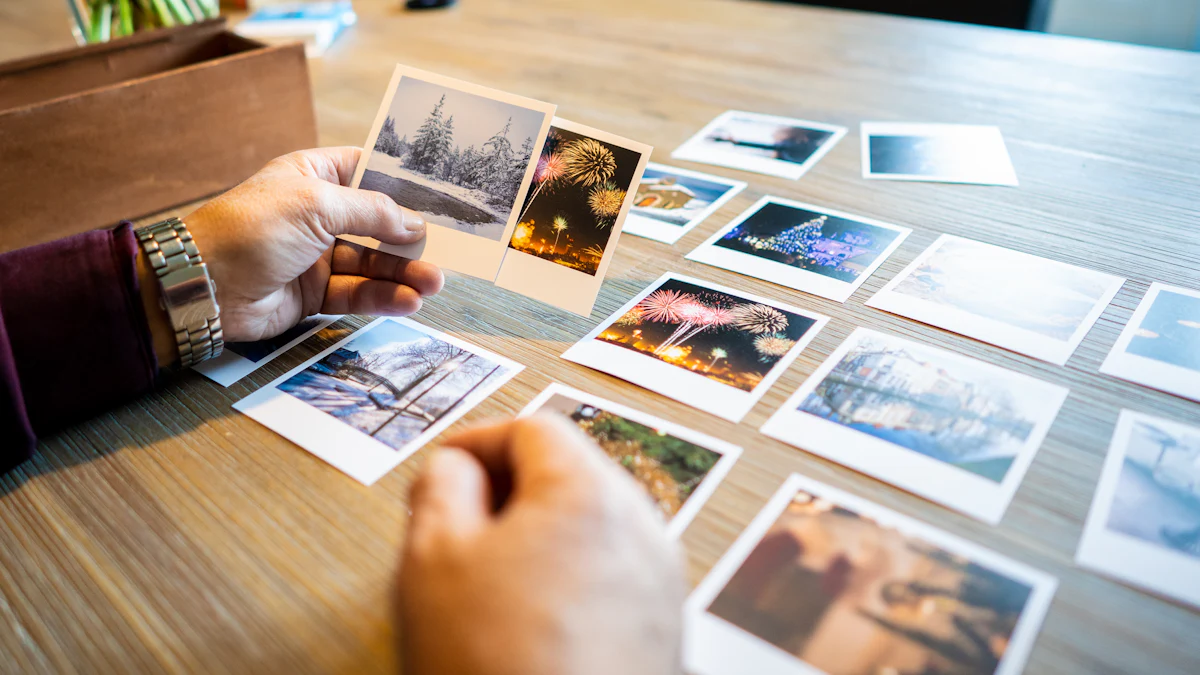
The photo at the top of this page is stored at two sizes, made with the same settings (WebP, quality 65): 1200 × 675 pixels is 119,666 bytes, and 640 × 360 pixels is 50,394 bytes. The larger one has about three and a half times as many pixels and is about 2.4 times the size. Saving an image at roughly the size it is shown at, rather than straight from the camera, is often worth more than any format change.
Why it matters for page speed
Images are often the heaviest part of a page. web.dev’s guide to image performance covers the basics: give images a width and height so the layout doesn’t jump while they load, and let images further down the page load lazily.
Can every browser show WebP?
Every current major browser can. According to caniuse, checked on 8 October 2026, WebP is shown by Chrome (from version 32), Edge (18), Firefox (65) and Safari (16, or 14 and 15 on macOS 11 Big Sur or later), and by Safari on iPhone and iPad from iOS 14. Internet Explorer never supported it, so only very old devices are a concern.
Showing an image vs creating one
Displaying a WebP and making one are different abilities. Tools that work inside a web page, such as the Image Converter, create images through the browser’s canvas, and MDN’s compatibility data shows that Safari can’t create WebP that way, while Chrome and Firefox can. Asked for an unsupported format, the browser quietly returns a PNG, so the Image Converter checks the result and points Safari users to Chrome, Edge or Firefox for WebP.
Fallbacks
If you publish for very old browsers, MDN suggests offering a JPG or PNG alongside the WebP with the HTML <picture> element, so each browser picks a file it can show. AVIF is another modern format with strong compression, but it is beyond the scope of this guide.
When to use each format
JPG
Use JPG for photos when they must work everywhere: email, printing services, older software and upload forms that only list JPG. It is not a photos-only format, but avoid it for screenshots, text, line art and anything that needs transparency. Each time a JPG is edited and saved again it is compressed again, so keep an original to work from.
PNG
Use PNG for screenshots, graphics with text, images with transparency that must open almost anywhere, and master copies you will edit again. Avoid it for photos on web pages, where the files are much larger than they need to be.
WebP
Use WebP for most images on a website, both photos and graphics, including images with transparency. In Google’s own tests, lossless WebP files were 26% smaller than PNGs, and lossy WebP files 25–34% smaller than comparable JPEGs at an equivalent SSIM quality score; your images may do better or worse. Avoid WebP where the destination doesn’t accept it, such as some upload forms, older apps and print workflows.
Converting and exporting without losing quality
- Start from the best original you have. Each lossy save can only lose detail, so don’t go from JPG to PNG and back to JPG.
- Resize first. Reduce the image to the size it will be shown at, then choose the format and quality.
- Check at real size. Compare the result at the size people will see it, not zoomed in.
- Remember what conversion can’t do. A thumbnail saved from YouTube is already a JPG. Converting it to PNG won’t add detail; converting it to WebP can make it smaller for a web page.
- Pages from a PDF: when you turn PDF pages into images, PNG keeps small text crisp, while JPG gives smaller files for pages that are mostly photos.
In the Image Converter, JPG and WebP have a quality setting from 40% to 100%, set to 90% by default, and PNG has none because it is lossless. Its WebP files are always lossy, so choose PNG when you need an exact copy. It also saves only the pixels, which removes location (GPS), camera and other EXIF data from the new files; that is how this tool works, not a property of the formats. Everything happens in your browser, as explained in how Biberks tools handle your data.
Quick decision guide
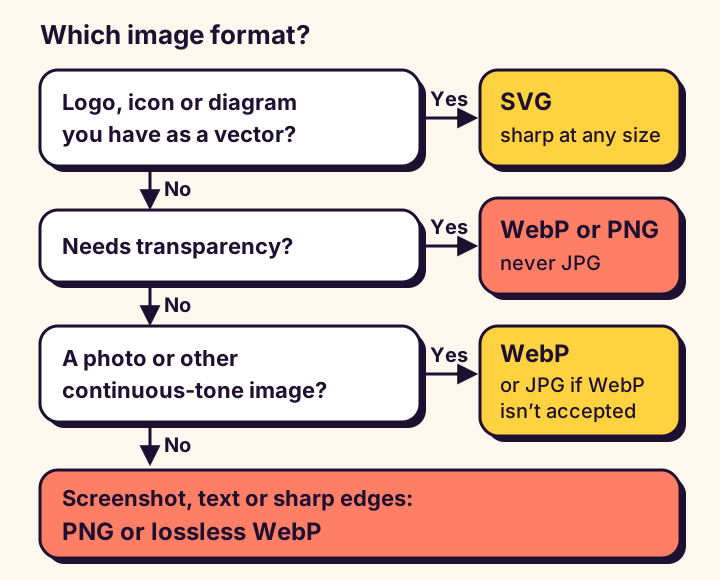
- A logo, icon or diagram you have as a vector: use SVG. It stays sharp at any size.
- Anything that needs transparency: use WebP or PNG, never JPG.
- A photo for a web page: use WebP, or JPG if WebP isn’t accepted.
- A photo for email, printing or an upload form: use JPG.
- A screenshot, text or sharp-edged graphic: use PNG or lossless WebP. The Image Converter’s WebP is lossy, so choose PNG there.
- A master copy you’ll edit again: keep the original, or save a lossless PNG.
Image format and accessibility
No image format is more accessible than another. What makes an image usable for people who can’t see it is a text alternative that matches its purpose: the W3C’s Images Tutorial explains how to describe informative images, and to give purely decorative images an empty alt attribute so screen readers skip them.
Avoid putting text inside images, apart from logos; real text can be resized, recoloured and read aloud. WCAG 2.2 covers this in Success Criterion 1.4.5, Images of Text. Where an image of text can’t be avoided, such as a screenshot in a help article, save it losslessly, because compression artefacts make small text harder to read for everyone.