
This YouTube SEO checklist is for anyone who publishes on YouTube, whether it’s your first upload or your hundredth. YouTube SEO means helping viewers, and YouTube, understand what a video is about, so it can be shown to the people who want it: the words you choose, the image people see before they click, and how you set the video up in YouTube Studio.
It has limits. Clear metadata helps the right viewers find a video, but it can’t make people keep watching one that doesn’t give them what they came for.
The rules below come from YouTube’s own documentation, linked where they’re used. When we write “YouTube says”, the rule is YouTube’s; when we call something good practice, it’s common-sense advice that YouTube doesn’t set as a rule. The full checklist is at the end.
What YouTube actually uses to understand your video
YouTube says the title, thumbnail and description are the more important pieces of metadata for helping a video get discovered. Tags play a minimal role; they mainly help when your subject is often misspelled.
For search, YouTube describes three main elements: relevance (how well the title, tags, description and video match the search), engagement (such as watch time for that search) and quality (signals of expertise and trustworthiness). Recommendations are built around viewers: what they choose to watch or skip, how long they watch, and feedback such as likes, “Not interested” and survey answers.
YouTube doesn’t publish a ranked list of factors, so this article doesn’t invent one. The takeaway: metadata gets your video understood and offered to the right people; how they respond decides how far it goes.
Before you upload: choose one clear topic
Find the words viewers use
Start typing your topic into YouTube’s search box and read the suggestions. They’re a free hint about how people phrase the subject, and they often show longer, more specific searches, such as “how to edit videos on a phone” rather than just “video editing”.
Good practice is one main topic per video. Decide what the viewer is trying to do (learn a skill, compare options, fix a problem or be entertained) and make the video do that one job well.
See what already exists
Search for your topic and look at the videos that come up. Note what they cover, what they leave out, and what viewers ask about in the comments. Then decide what your video does better or differently: more up to date, shorter, or aimed at beginners. Don’t borrow other creators’ titles or thumbnails; it makes your video blend in and can mislead viewers.
YouTube title
Say what the video is about, early
Titles can be shortened in some places, especially on small screens, so put the subject in the first few words and the detail after it. That’s good practice rather than a fixed rule: YouTube doesn’t publish one display length for every screen.
Stay within the 100-character limit
YouTube says a title can be up to 100 characters and can’t include invalid characters. The limit is a ceiling, not a target. Add a year only when the content really depends on it, such as a tax guide or a list of this year’s releases, not as a habit. To compare a few phrasings quickly, draft three title options with the YouTube Title, Tag & Description Generator, then edit the one you like in your own words.
Keep it honest
YouTube’s spam, deceptive practices and scams policies prohibit titles, thumbnails, descriptions or images designed to trick people into clicking a video that doesn’t deliver what was promised. Its own example is a title offering a full sports match when the video shows only a clip. A bold title is fine; a false one can lead to removal and a strike.
YouTube description
The first lines do the most work
Viewers see only the opening lines of a description until they expand it, so use those lines to say what the video covers and who it’s for, in plain sentences that naturally include the words people search for. A description can be up to 5,000 characters, but there’s no need to fill it: a clear summary followed by useful extras is enough.
Chapters and timestamps
Chapters split a longer video into labelled sections that viewers can jump between. YouTube’s rules for adding them yourself:
- List timestamps in the description, and start the first one at 00:00.
- Include at least three timestamps, in ascending order.
- Make each chapter at least 10 seconds long.
Your own timestamps replace automatic chapters, and you can switch automatic chapters off by unticking “Allow automatic chapters” in the video’s settings. Name each chapter after what happens in it, not “Part 2”.
Links, credits and corrections
Below the summary, add what viewers will use: sources, things mentioned in the video, and related videos or playlists. Credit music, footage and contributors as their licences require. If you find a mistake after publishing, add a short correction near the top of the description. Keep calls to action brief.
Tags vs hashtags: not the same thing
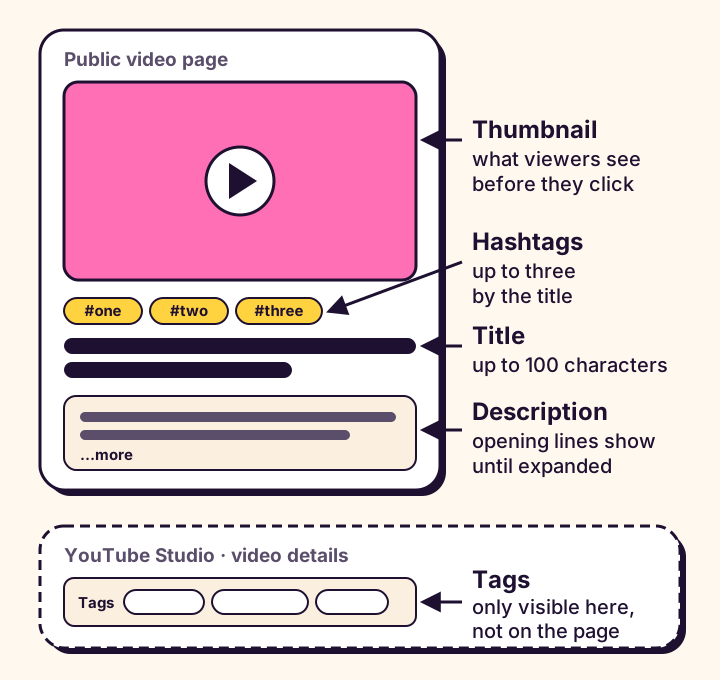
Tags and hashtags sound alike but do different jobs in different places. The table puts each piece of metadata side by side.
| Element | Where it goes | Who sees it | What YouTube says |
|---|---|---|---|
| Title | Title field | Everyone, in results, feeds and on the video page | Up to 100 characters; one of the more important pieces for discovery |
| Description | Description field | Everyone; the opening lines before it’s expanded | Up to 5,000 characters; one of the more important pieces for discovery |
| Tags | Tags field in the video’s details | Only you, in YouTube Studio | A minimal role in discovery; useful for commonly misspelled topics |
| Hashtags | Title or description, written with # | Everyone; they link to other videos with the same hashtag | Up to three appear by the title; with more than 60, all are ignored |
| Thumbnail | Thumbnail in the video’s details | Everyone, before they click | One of the more important pieces for discovery; custom uploads need a verified account |
Sources: YouTube Help on video settings, tags, hashtags and thumbnails.
Tags
Tags go in the Tags field of the video’s details in YouTube Studio, and viewers never see them. YouTube calls their role minimal and says they’re useful when your topic is commonly misspelled, so add the main subject, a likely misspelling and a few close variations, then move on. If you’d like a starting set to trim, make a tag set that fits the tag box with the YouTube Tag Generator.
Hashtags
YouTube’s hashtag rules:
- You can add hashtags to a video’s title and description.
- Up to three hashtags that YouTube considers most engaging can appear by the video’s title.
- If a video has more than 60 hashtags, YouTube ignores every one of them.
- Hashtags can’t contain spaces; join the words of a phrase together.
- Hashtags must relate directly to the video. Misleading or unrelated ones can lead to removal.
YouTube also notes that the more tags you add, the less relevant each one becomes, so a handful that describe the video does more than a long string. To pick relevant hashtags with the YouTube Hashtag Generator, start from your topic and remove anything that doesn’t fit the video.
Don’t paste tag lists into your description
Some creators copy their whole tag list into the description. YouTube says that adding excessive tags to a description breaks its spam, deceptive practices and scams policies. Write the description for people, and keep tags in the Tags field.
YouTube thumbnail
Upload requirements
YouTube’s custom thumbnail requirements, checked on 6 October 2026:
- Your account must be verified before you can upload a custom thumbnail.
- Resolution: 3840 × 2160 pixels for videos, with a minimum width of 640 pixels.
- Aspect ratio: 16:9 for videos.
- Format: an image such as JPG or PNG.
- File size: up to 50 MB when uploading from a computer, or 2 MB for a video thumbnail uploaded from a phone or tablet.
- Thumbnails must follow YouTube’s Community Guidelines.
Older guides often quote 1280 × 720; YouTube’s current recommendation is higher.
Make it readable at small sizes
Thumbnails are often seen small, on a phone or in a list of suggestions. Good practice is a few large words at most, strong contrast, and one clear subject rather than several small ones. Shrink your design to phone-result size before uploading; if you can’t tell what the video is about, simplify.
Match the promise
The thumbnail falls under the same honesty rule as the title: it must not trick viewers about what the video contains. Show something that actually happens in the video, and let the title and thumbnail work together rather than repeat each other.
Studying other thumbnails
Studying thumbnails that work in your niche is a good way to learn. YouTube keeps a few public copies of each thumbnail; the biggest is 1280 × 720 (maxresdefault), and some videos don’t have that size at all, so a saved copy can be smaller than the file the creator uploaded. Remember that each thumbnail belongs to its creator: use what you learn, not the image itself.
YouTube Shorts SEO
YouTube says a Short can be up to 3 minutes long, as long as the video is square or vertical; the limit rose from 60 seconds in October 2024. A Short has very little time to show why it’s worth watching, so good practice is to open on the payoff, the problem or the question, with no slow introduction.
The same metadata rules apply: a short, descriptive title, a line or two of description, and a few relevant hashtags. YouTube’s Shorts upload rules cover length and shape; they don’t require a #Shorts hashtag. You can add a custom Shorts thumbnail only in YouTube Studio on a computer, at 9:16 (2160 × 3840 recommended, at least 640 pixels high). When you’re short of ideas, plan a Short with a hook, three beats and an ending, then film it in your own way.
Publishing workflow
Upload, check, then publish or schedule
Upload the video as private or scheduled, then check it before anyone sees it. YouTube processes a lower quality first; higher qualities such as 1080p and 4K can take several hours longer. While you wait:
- Open Subtitles in YouTube Studio and check the captions. YouTube warns that automatic captions can get words wrong, so correct them or upload your own.
- Add an end screen in the last 5 to 20 seconds (the video must be at least 25 seconds long, and end screens aren’t shown on videos made for kids), and add cards where they help.
- Add the video to a playlist with related videos.
- Set the audience (made for kids or not) and the video language, and check the category.
Timing and your audience’s time zone
Schedule the video so it goes live when your viewers are usually around. For ordinary uploads, YouTube says publish time isn’t known to affect a video’s long-term performance. For more on when to publish for viewers in different countries, see our upload timing guide.
Keep everything consistent
The title, the thumbnail and the first lines of the description should make the same promise, and the opening of the video should deliver it. When those four agree, viewers who click get what they expected.
Set the video language to the language actually spoken, and label each caption track with its own language. Use the main topic where it reads naturally; repeating the same phrase in the title, description and tags doesn’t make the video more relevant, and it reads badly.
After publishing: what to check
A few days after publishing, check how viewers responded in YouTube Analytics:
- Impressions and impressions click-through rate (the Reach tab). The click-through rate measures how often viewers watched after seeing your thumbnail on YouTube; other websites and end screens aren’t counted.
- Traffic sources. The “Traffic source: YouTube search” card lists the searches that brought viewers. Compare them with the words in your title and description.
- Average view duration and audience retention. The key moments for audience retention report shows where viewers stop watching, and it can compare the video with your own recent videos of a similar length.
Compare each video with your own channel, not with figures quoted online; there’s no universal “good” click-through rate or retention figure. Impressions but few clicks suggest a clearer title or thumbnail; clicks but early exits suggest the video doesn’t deliver what the packaging promised. On a computer, YouTube Studio can test up to three titles or thumbnails on a video and picks the winner by share of watch time; Shorts can’t be tested this way.
The pre-publish YouTube SEO checklist
Run through this before every upload.
Topic
- Choose one main topic and the viewer’s goal.
- Check YouTube’s search suggestions for the words viewers use.
- Decide what your video does better or differently.
Title
- Put the subject in the first few words.
- Stay within 100 characters.
- Make sure the video delivers what the title promises.
Description
- Summarise the video in the first lines.
- Add chapters: 00:00 first, at least three, each 10 seconds or longer.
- Add links, credits and any corrections.
Tags and hashtags
- Add a few accurate tags, including common misspellings.
- Use a few relevant hashtags, never more than 60.
- Keep tag lists out of the description.
Thumbnail
- Upload a 16:9 JPG or PNG at the recommended size.
- Check it’s readable at phone size.
- Show something that’s really in the video.
Shorts (if applicable)
- Keep it square or vertical and no longer than 3 minutes.
- Open on the hook.
Publishing
- Wait for HD processing, and review captions.
- Add an end screen, cards and a playlist.
- Set the audience and video language, then publish or schedule.
Want a first draft of everything at once? You can build the full upload kit (titles, tags, description) in one go, then work through the list above.